
Implementation guide. The configuration below is based on Make’s documentation. The examples use synthetic submissions.
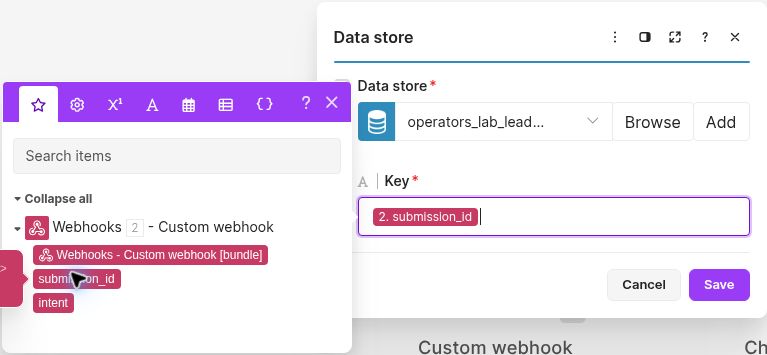
To send one email per form submission in Make, trigger a scenario with a custom webhook and use the form’s stable submission ID as the Data store key. Check that key before sending the alert. A retry should reuse the original ID, while two separate requests from the same person should have different IDs.
 Make
Affiliate disclosure: The Operator’s Lab may earn a commission if you purchase through the Make link below, at no additional cost to you.
1. Set up a test webhook
In a new Make scenario, add Webhooks → Custom webhook. Use a test webhook and an email inbox you control. If your form provider can set a request header, configure Make’s API-key authentication and send the key in the x-make-apikey header. For a public web form, have a trusted backend or form provider send the request. Keep the webhook URL and key out of client-side code and shared documents. See the Make webhook documentation.
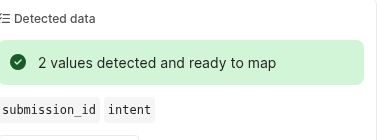
Select Run once and send an example payload to the test webhook:
{
  "submission_id": "contact-form:demo-001",
  "intent": "demo_request"
}
Use the ID generated by the source system. If IDs are unique only within a form or system, prefix them with that source’s ID. Keep the same ID across retries. Add a filter requiring a nonblank ID and one of your allowed intent values before any Data store or email action.
Prevent duplicate webhook emails in Make
Create a Data store called lead_notifications. Use the submission ID as its key and define a text field called intent. Add Data store → Check the existence of a record and map the submission ID to Key. Add a filter to continue to the email module only when the result is false.
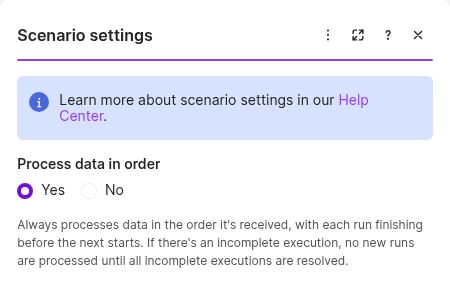
In the scenario settings, turn on Process data in order. Instant webhooks normally run in parallel, which would allow two copies to pass the existence check before either writes a record. Keep this store exclusive to the scenario so the serial processing setting covers all writers. See the Data store module reference.
3. Notify the team and record the result
Add Email → Send an Email and connect a sender account authorized for this workflow. Use a fixed recipient you control while testing. Put the submission ID in the subject, for example [Lead intake] contact-form:demo-001, and map the submission ID and intent into the body. Keep contact details and free-text responses in the original intake system. See the Make Email app documentation.
After the email module reports success, add Data store → Add/replace a record. Map the submission ID as the key and store the intent. Turn off overwriting when an existing key is encountered so unexpected conflicts are visible.
Recording success after sending lets a retry recover when the alert was never sent. There is still a gap if the mail system accepts a message and Make fails before saving the record. Search the sender’s records or recipient inbox for the submission ID before replaying an ambiguous failure. If you find the message, reconcile the store rather than sending a second alert. If you need a stronger delivery guarantee, choose a destination that supports idempotent writes and use the source submission ID as its idempotency key.
Once duplicate alerts are handled, use this Make lead routing guide to send each submission to the right team and catch unmatched categories.
4. Check the workflow before enabling it
| Test input or condition | Expected result |
|---|---|
| One valid submission | One email message and one Data store record |
| Replay the identical submission ID | No second email message |
| Same person submits a new inquiry with a new ID | A separate email message and record |
| Blank ID or unsupported intent | No alert and no deduplication record |
| Email module rejects the message | No success record. Diagnose the error before replaying. |
| Mail system accepts the message, then the store write fails | Check the sender’s records or recipient inbox using the submission ID before retrying. |
Check Make’s execution history for downstream results. The default webhook acknowledgment indicates that the input was accepted into Make’s queue. Confirm the email message and the store record separately. Pick a retention period for the deduplication records that covers the upstream retry and replay window.
For production routing rules, approvals and handoffs, see the CRM automation and lead-routing checklist. If you’re still choosing a platform, read the Zapier vs Make vs n8n comparison.
 Summaries + tasks
 Attendee → deal
 Meeting note
 650
 450
 200