
Use a Make Router to send inbound form submissions to the right team. Give each named route a distinct filter and mark one route as the fallback for submissions with a missing or unexpected category. This walkthrough follows Make’s Router documentation and uses synthetic test cases.
Affiliate disclosure: The Operator’s Lab may earn a commission from qualifying purchases through the Make link below, at no additional cost to you.
Open Make to build this routing workflow
 Make
1. Capture the fields that decide ownership
Start with a form connected to Webhooks → Custom webhook. In a test scenario, choose Run once and submit an example with a stable submission ID and a category such as sales. Map the category from a form dropdown with controlled values. If your form already retries deliveries, use a stable ID across those retries and apply the Make deduplication walkthrough before launching.
2. Add two filtered routes and a fallback
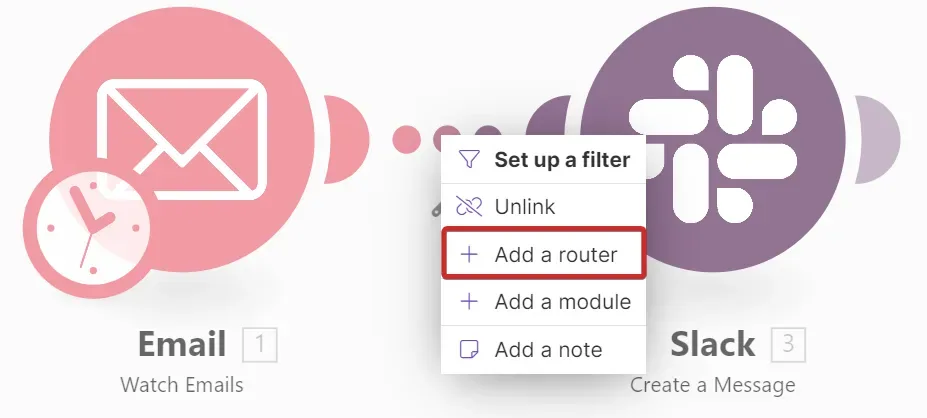
Place a Router after intake. Add an email module to each branch and send to inboxes your team controls. Set the recipients in Make using your routing rules.
| Route | Filter | Recipient |
|---|---|---|
| Sales | Category equals sales |
Sales queue |
| Partnerships | Category equals partnerships |
Partnerships queue |
| Unassigned | Mark as the fallback route | Shared intake inbox |
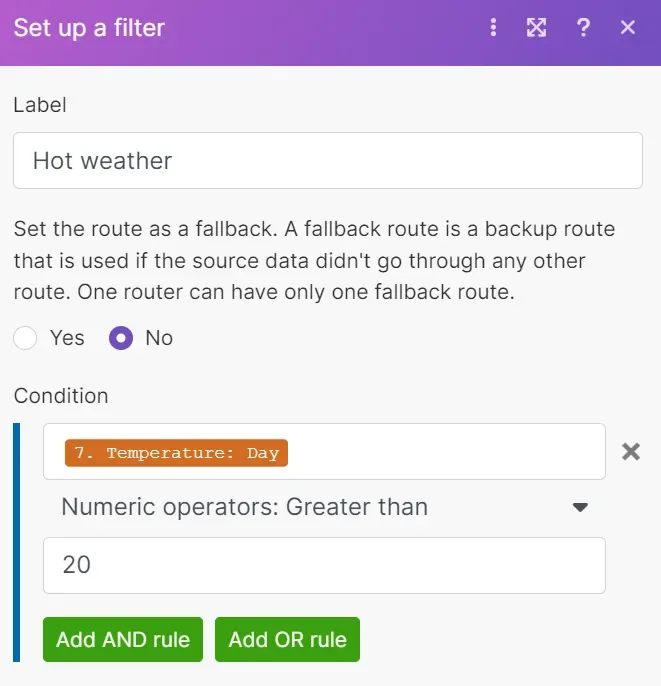
Open the last route’s filter settings and mark it as the fallback route. It handles submissions that match neither named filter. Use mutually exclusive filters so a single submission cannot match multiple named routes. Include the submission ID and intended queue in each alert so someone can trace the handoff.
3. Test the routes in a test inbox
Keep the scenario off while configuring it, then use Run once for each test. Check both the execution history and the inbox.
| Test input | Expected result |
|---|---|
sales |
One alert in the sales queue |
partnerships |
One alert in the partnerships queue |
Missing category or other |
One alert in the shared inbox |
| Same submission ID resent | No second alert once deduplication is configured |
The fallback covers an unmatched filter. If the Sales email module fails after the Sales route matches, inspect the failed execution and configure the appropriate error handling for that module. Define who checks the shared inbox and who owns failed runs before enabling the scenario. Use the CRM automation checklist to document ownership and recovery.
 Summaries + tasks
 Attendee → deal
 Meeting note
 650
 450
 200